

How to Improve Smartphone Audio Quality in 2026
Table of Contents
- Why Smartphone Audio Quality Falls Short
- Best Equalizer Settings for Android to Boost Audio Quality
- How to Clean Phone Speakers for Clearer Output
- Enable Spatial Audio and Sound Enhancements
- Use an External DAC for Smartphone Hi-Res Playback
- Improve Microphone Quality on Phone for Recordings
-
Optimize Bluetooth Audio Codecs and Streaming Settings
- How Codecs Actually Work: Bitrate, Sample Rate, and Latency
- The LDAC Myth: Why 990 kbps Isn't Always the Answer
- How to Force a Specific Codec on Android
- The iPhone Limitation: AAC Is Your Only Option
- App-Specific Streaming Settings: The Overlooked Variable
- The Environmental Factor: RF Interference and Physical Obstacles
- App-Specific Audio Optimization and File Format Impact
- Conclusion: Your Action Plan for Better Phone Sound
- Frequently Asked Questions
Last Updated: September 5, 2026
Why Smartphone Audio Quality Falls Short
Your phone is a marvel of engineering, yet its audio output often feels like an afterthought. The physical constraints of a slim chassis leave little room for large drivers, dedicated amplifiers, or high-quality digital-to-analog converters. This is the fundamental gap between what your phone can store and what it can actually reproduce with clarity.
The issue isn't just hardware. Software processing, default equalizer curves, and aggressive compression algorithms often degrade the signal further before it ever reaches your ears. Most people accept this mediocrity because they don't realize how much headroom for improvement exists. Improving smartphone audio quality isn't about buying a new phone; it's about understanding the bottlenecks and working around them systematically.
Whether you're using wired earphones, a Bluetooth speaker, or the built-in speakers, the path to better sound starts with identifying where the signal degrades. Below, we'll show you exactly how to reclaim that lost fidelity, from cleaning your hardware to configuring the software that controls it.

Best Equalizer Settings for Android to Boost Audio Quality
The equalizer is your first and most accessible tool for shaping sound. Rather than relying on generic presets, you should adjust frequency bands to match both your headphones and the content you're consuming. A flat response is rarely ideal for consumer gear, which often has colored tuning that needs correction.
Start by playing a track you know intimately. Listen for specific problems: muddy bass, harsh treble, or a recessed midrange that buries vocals. Then make surgical cuts rather than boosts. Reducing a problematic frequency by 3 dB often sounds cleaner than boosting everything else to compensate.
Where to Find the System EQ on Different Phones
The path to the system-wide equalizer varies significantly by manufacturer, and knowing the exact menu saves you from hunting through settings:
- Samsung (One UI): Settings > Sounds and vibration > Sound quality and effects > Equalizer. Samsung also offers Dolby Atmos here, which we cover in the next section.
- Google Pixel (Stock Android): Settings > Sound & vibration > Advanced > Audio settings. Note that some Pixel models lack a system EQ entirely, so you'll need a third-party app like Wavelet or Poweramp Equalizer.
- Xiaomi (MIUI/HyperOS): Settings > Sound & vibration > Sound effects > Equalizer. You can also enable Mi Sound Enhancer for headphone-specific tuning.
- OnePlus/Oppo (ColorOS): Settings > Sound & vibration > Earphone sound effects > Equalizer. This menu only appears when wired earphones are connected.
If your phone lacks a built-in EQ, the best third-party option is Wavelet (free on the Play Store). It uses the legacy AudioFX API to apply system-wide processing without root, and it includes auto-detection for over 200 headphone models, applying a compensation curve that flattens your specific headphone's frequency response.
Concrete Frequency Adjustments by Content Type
Different content demands different curves. For music, a gentle "V" shape can add excitement, but be careful not to overdo it. For podcasts and audiobooks, prioritize vocal clarity by boosting the midrange around 1-3 kHz and slightly cutting the bass below 100 Hz to reduce rumble (asha.org). For calls, a high-pass filter around 200 Hz cleans up muddiness and improves intelligibility.
A common mistake is cranking the preamp gain to max. This introduces clipping and distortion, which ruins the signal-to-noise ratio. Instead, keep the preamp neutral or slightly negative, and rely on the individual band adjustments to shape the tone.
The 5-Band vs. 10-Band EQ Trade-off
Most system EQs offer either 5 or 10 bands. A 10-band EQ gives you finer control, but it also makes it easier to introduce phase cancellation if you make aggressive adjacent-band adjustments. A 5-band EQ is often sufficient for correcting broad tonal imbalances. If you have a 10-band EQ, limit yourself to adjusting every other band to avoid over-processing.
The Missing Piece: Headphone Compensation Curves
Most EQ guides ignore the fact that your headphones themselves have a non-neutral frequency response. A budget pair of earbuds might boost bass by 8 dB and roll off treble above 10 kHz. Adjusting the EQ without knowing your headphone's target curve is guesswork. Apps like Wavelet and SoundID (by Sonarworks) offer headphone-specific compensation profiles that flatten the response to a neutral target. This is a more scientific approach than guessing which frequencies to cut or boost, and it's the difference between "sounds different" and "sounds accurate."
How to Clean Phone Speakers for Clearer Output
Dust and lint are the silent killers of smartphone audio. Over months of pocket carry, the speaker grille and headphone port accumulate debris that physically blocks sound waves, muffling output and reducing high-frequency response. The fix is simple, but the technique matters.
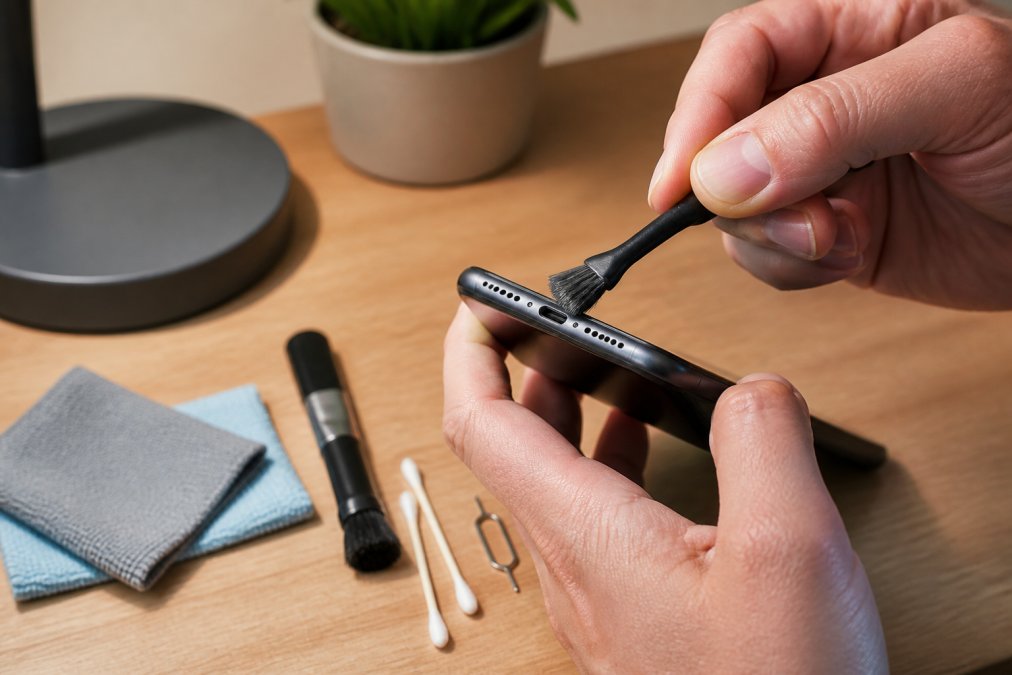
Use a dry, soft-bristled brush, such as a clean toothbrush or a dedicated electronics cleaning brush, to sweep across the grille at an angle. Do not use compressed air, as the force can push debris deeper into the speaker cavity (consumer.ftc.gov). For the headphone port, use a wooden or plastic toothpick to gently scrape the sides, avoiding the delicate connector pins at the bottom.
This maintenance also extends to your accessories. A dirty headphone jack on your wired earphones can cause crackling or intermittent audio. Keeping these contact points clean ensures a stable connection and prevents the volume drops that often signal a poor electrical contact. If your phone's speakers sound quieter than they used to, cleaning them is the first step before you adjust any software settings.
Enable Spatial Audio and Sound Enhancements
Modern smartphones include spatial audio processing that simulates a surround-sound field from stereo sources. While the effect varies by device, enabling it can add a sense of width and depth that makes music feel less "trapped" inside your head. This is particularly effective with movies and games, where positional cues matter.
Sound enhancement features, such as adaptive sound or dialogue boost, analyze the acoustic environment and adjust playback in real time. These are not gimmicks. They use the phone's microphone to measure ambient noise and automatically shape the frequency response to compensate. For example, on a noisy commute, the phone can boost midrange frequencies so vocals remain audible without forcing you to raise the volume to unsafe levels.
The key is to experiment. Some implementations of spatial audio can smear the stereo image or introduce a slight latency that feels unnatural for music. If a track sounds phasey or hollow, disable the effect and rely on a well-tuned equalizer instead. These enhancements are best used selectively rather than left on permanently.
Use an External DAC for Smartphone Hi-Res Playback
The built-in digital-to-analog converter in most smartphones is competent but limited. For high-resolution audio files, which carry more data than standard compressed formats, the internal DAC often lacks the precision to render the full dynamic range. An external DAC bypasses this limitation entirely.
A portable DAC connects to your phone via USB-C and processes the digital signal before sending it to your wired earphones. This offloads the conversion task from the phone, often resulting in a lower noise floor, better channel separation, and a more accurate frequency response. The difference is most noticeable with high-impedance headphones, which require more voltage to drive properly than the phone's headphone jack can provide.
This is where dedicated audio hardware shines. If you're serious about listening to lossless files, investing in a compact external DAC is the single most impactful upgrade you can make. It removes the phone's audio processing from the chain, letting your high-quality earphones perform to their full potential.
Improve Microphone Quality on Phone for Recordings
Recording quality is often the forgotten half of the audio equation. The built-in microphone on your phone is omnidirectional and positioned for voice calls, not for capturing music or interviews. When you record a gig or a podcast, the phone captures every bit of ambient noise, resulting in a muddy track with poor signal-to-noise ratio.
The solution is to use an external microphone that connects via the headphone jack or USB-C. A lavalier mic clips to your shirt and places the capsule close to the sound source, dramatically improving vocal clarity. For recording acoustic instruments or loud environments, a directional microphone helps isolate the subject from background noise.
An external microphone also improves gain staging. The phone's internal preamp is designed for speech levels, and loud sounds can cause clipping. Many external mics have their own preamp or a lower sensitivity, allowing you to record louder sources without distortion. This is a crucial step for anyone using their phone for field recordings or content creation.
Optimize Bluetooth Audio Codecs and Streaming Settings
Bluetooth audio quality is dictated by the codec used to transmit the signal. The standard SBC codec is adequate for calls but compresses music heavily (bluetooth.com). Higher-quality codecs like AAC, aptX, and LDAC preserve more detail, but both the phone and the headphones must support them. This is a common bottleneck in how to improve smartphone audio quality.
How Codecs Actually Work: Bitrate, Sample Rate, and Latency
A codec is essentially a compression algorithm that packages audio data for wireless transmission. The key parameters are:
- Bitrate: The amount of data transmitted per second (kbps). Higher bitrates preserve more detail but require more bandwidth.
- Sample rate: How often the analog signal is measured per second (kHz). Higher sample rates capture more frequency detail.
- Latency: The delay between when audio is sent and when it's heard. This matters for gaming and video sync.
Here's how the common codecs stack up:
| Codec | Max Bitrate | Sample Rate | Latency | Notes |
|---|---|---|---|---|
| SBC | 328 kbps | 48 kHz | ~200ms | Mandatory baseline; heavily compressed |
| AAC | 256 kbps | 48 kHz | ~150ms | Good on iPhones; variable on Android |
| aptX | 352 kbps | 48 kHz | ~100ms | Better than SBC but not lossless |
| aptX HD | 576 kbps | 48 kHz | ~100ms | Improved dynamic range |
| aptX Adaptive | 279-420 kbps | 48/96 kHz | ~80ms | Adjusts bitrate dynamically for stability |
| LDAC | 990 kbps | 96 kHz | ~200ms | Sony's proprietary high-res codec |
The LDAC Myth: Why 990 kbps Isn't Always the Answer
Many guides tell you to force LDAC at 990 kbps and call it a day. But this ignores a critical trade-off: at 990 kbps, LDAC requires a strong, stable RF connection. In crowded areas with Wi-Fi interference or when your phone is in a pocket on the opposite side of your body, the connection will stutter and drop packets. When that happens, the codec automatically downshifts to 660 kbps or even 330 kbps, causing audible artifacts mid-song.
A more reliable approach is to set LDAC to 660 kbps ("Optimized for connection quality" in developer options). This bitrate is still significantly better than aptX HD and maintains a stable connection in most environments. The difference between 660 and 990 kbps is nearly inaudible on most consumer headphones anyway, since the headphones themselves introduce more distortion than the codec saves.
How to Force a Specific Codec on Android
To access codec settings, you need to enable Developer Options:
- Go to Settings > About phone and tap "Build number" seven times.
- Return to Settings > System > Developer options.
- Scroll to the "Bluetooth" section and tap "Bluetooth Audio Codec."
- Select LDAC, aptX Adaptive, or AAC from the list.
- If you choose LDAC, tap "Bluetooth Audio LDAC Codec: Playback Quality" and select "Optimized for audio quality" (990 kbps) or "Optimized for connection quality" (660 kbps).
Note that the codec selection only applies to the currently connected device. If you reconnect your headphones later, the phone may revert to its default codec, so you'll need to re-select it.
The iPhone Limitation: AAC Is Your Only Option
iPhones do not expose codec selection to the user. All Bluetooth audio is transmitted via AAC, which Apple has optimized heavily for its own devices. The good news is that AAC on iPhone performs better than AAC on most Android phones because Apple's implementation uses a higher-quality encoder. The bad news is that you cannot force aptX or LDAC, even if your headphones support them. If you're an iPhone user, your best upgrade path is wired listening with an external DAC.
App-Specific Streaming Settings: The Overlooked Variable
The codec is only half the equation. The other half is the bitrate of the file being streamed. Most streaming apps default to a compressed bitrate to save data, and if the source file is 128 kbps, no codec can restore the missing detail.
Here's where to set each app to its highest quality:
- Spotify: Settings > Audio Quality > set Wi-Fi streaming to "Very High" (320 kbps Ogg Vorbis). Also disable "Automatic quality" and set the volume level to "Loud" or "Quiet" depending on your preference, "Normal" applies additional limiting that reduces dynamic range.
- Apple Music: Settings > Audio Quality > enable "Lossless" (ALAC up to 24-bit/48 kHz) and "High-Res Lossless" (up to 24-bit/192 kHz) for Wi-Fi. Note that Lossless requires a wired connection, Bluetooth codecs cannot transmit lossless audio.
- YouTube Music: Settings > Playback and downloads > set "Audio quality on Wi-Fi" to "Always high." YouTube Music does not offer lossless, topping out at 256 kbps AAC.
- Tidal: Settings > Streaming > select "Master" or "HiFi" quality. Tidal's Master tier uses MQA, which requires compatible hardware to fully unfold.
- Podcast apps (e.g., Pocket Casts): Settings > Playback > set "Downloaded audio quality" to "High" (192 kbps or higher). Many podcasts are distributed as 64-128 kbps MP3s, which sound noticeably muddy on good headphones.
The Environmental Factor: RF Interference and Physical Obstacles
Bluetooth operates in the 2.4 GHz band, which is shared with Wi-Fi, microwaves, and other Bluetooth devices. In dense urban areas or crowded gyms, RF interference can cause the codec to downshift to a lower bitrate or introduce dropouts. Physical obstacles, walls, your own body, a metal desk, also attenuate the signal. If you experience stuttering, try moving your phone to a front pocket or holding it in the same hand as your headphones' receiver. This isn't a software setting, but it's often the difference between a stable 990 kbps LDAC connection and a stuttering 330 kbps one.
App-Specific Audio Optimization and File Format Impact
Not all apps handle audio equally. Some music players apply their own equalizer or volume normalization, which can conflict with your system-wide settings. It's worth checking whether your primary listening app has a built-in EQ and disabling it if you're using the system one, to avoid double-processing the signal.
The file format matters more than many realize. Compressed formats like MP3 and standard AAC discard audio data above certain frequencies and below certain volume thresholds. Lossless formats like FLAC or ALAC preserve the full recording. If you're upgrading your hardware, you should also upgrade your library, as high-quality gear will ruthlessly expose the artifacts of low-bitrate files.
Consider the acoustic environment as well. A pair of open-back headphones in a quiet room will always outperform closed-back ones on a noisy street. The best audio setup is one that matches the listening conditions. Environmental noise cancellation is a feature that helps, but it cannot fully compensate for a poor source file or a mismatched codec.
Conclusion: Your Action Plan for Better Phone Sound
Improving smartphone audio quality is a process of elimination. Start with the physical layer: clean your speakers and ports. Then move to the software layer: adjust the equalizer and enable sound enhancements. If you're serious about fidelity, add an external DAC and ensure your Bluetooth codec is set to the highest quality.
The goal is to remove the bottlenecks in your chain, from the source file to the speaker driver. Each fix builds on the last, and the cumulative result is a listening experience that rivals dedicated audio players. For those looking to complement their phone's output with gear that matches this level of performance, the Electro Gift Shop range of portable, high-fidelity speakers and headphones is designed to deliver crystal-clear audio in a durable, travel-friendly form factor. Explore the collection and hear the difference that proper hardware makes.
Frequently Asked Questions
Why is my phone audio so quiet or distorted?
Quiet or distorted audio usually comes from blocked speaker grilles, disabled sound enhancements, or compressed Bluetooth streams. Check for dust and debris in the speaker mesh first, then confirm your media volume limit isn't set too low. On Android, disable the absolute volume setting in developer options. Streaming at a higher bitrate also helps, as low bitrate files sound muffled even through good speakers.
Do equalizer apps actually improve smartphone audio quality?
Equalizer apps work by adjusting frequency response, which can make audio sound clearer and more balanced. They help most with compressed audio files and low-cost earbuds, letting you boost treble for clarity or reduce bass that causes distortion. System-level equalizers in Android settings or music apps are reliable. For the best results, pair these settings with high-quality files instead of low-bitrate streams.
Will an external DAC make a noticeable difference on my phone?
An external DAC for smartphone use bypasses your phone's built-in digital-to-analog converter, which is often a weak point in audio quality. It can improve signal-to-noise ratio, dynamic range, and overall clarity, especially with high-impedance headphones. The difference is most obvious with lossless files. For casual listening with standard earbuds, the upgrade is less dramatic, but audiophiles will notice cleaner sound.
How can I improve microphone quality on my phone for recordings?
To improve microphone quality on your phone, start by cleaning the mic holes gently and removing any case that may cover them. Use a dedicated recording app that allows manual gain staging to prevent clipping. For voice or music, an external microphone that connects via USB or the headphone jack bypasses the phone's built-in mics entirely. You can also reduce background noise by recording in a quiet room with soft furnishings.
Getting great sound from your phone isn't about expensive upgrades, it's about smart adjustments. Start with the steps above and you'll notice the improvement immediately. Electro Gift Shop offers a curated selection of audio gadgets, from retro-styled Bluetooth speakers to comfortable sleep headbands, all built for reliable, high-quality listening on the move. Get started with Electro Gift Shop and make every moment sound better.
This article was written using GrandRanker