

How to Improve Portable Audio Quality: A 2026 Guide
Table of Contents
- Start With Free Fixes Before You Buy Anything
- How to Improve Audio Quality on Phone Without New Hardware
- Bluetooth Audio Quality Settings That Actually Change What You Hear
- How to Fix Muffled Audio on Headphones, Speakers, and Phones
- Music Bitrate and Sound Quality: What File Quality Actually Delivers
- When Upgrading Gear Makes Sense: DAPs, DACs, and Headphone Matching
- Match Your Setup to How You Actually Listen
- A Simple Troubleshooting Sequence for Any Portable Setup
- Conclusion: Better Sound Starts With What You Already Own
- Frequently Asked Questions
Last Updated: October 8, 2026
Start With Free Fixes Before You Buy Anything
Most people jump straight to buying new gear when their music sounds flat. That's the expensive mistake. Learning how to improve portable audio quality starts with free adjustments, and those changes often deliver the biggest jump in what you actually hear.
Before you spend anything, check three things: your volume limit, your equalizer, and whether your case is blocking the sound.
Here's what to check first:
- Volume limiters that cap loudness in software
- EQ presets that flatten or over-boost certain frequencies
- Phone cases and covers sitting over speaker grilles
- Lint or dust packed into earbud nozzles
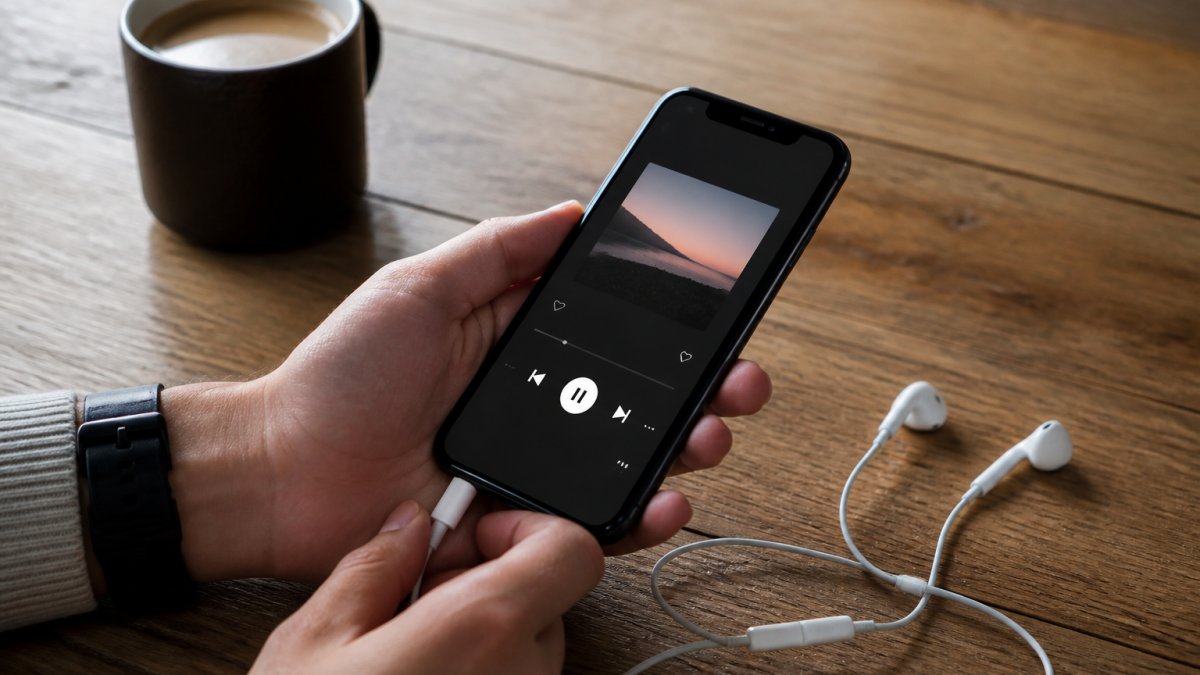
Check the Basics: Volume Limits, EQ, and Case Obstructions
Volume limits are the most overlooked culprit. Many phones ship with a safety cap turned on, and it quietly reduces output across every app.
Turn it off in your sound settings. Then look at your EQ. A "flat" or "normal" preset is usually best, because heavy bass boosts muddy the midrange where voices and instruments live.
Cases matter more than people think. A thick cover over a bottom-firing speaker can muffle output by a noticeable amount. Pop the case off and listen again.
How to Improve Audio Quality on Phone Without New Hardware
You can improve audio quality on phone without spending a cent, and the results are often dramatic. The catch is that most guides skip the settings that matter most.
Two changes do the heavy lifting: disabling audio processing, and matching your phone's output to your headphones.
Most phones apply hidden processing by default. It's designed to make cheap earbuds sound "fuller," but it adds distortion and smears detail. Turn it off and you hear what the artist actually recorded.
Disable Audio Processing That Flattens Your Sound
Look for settings with names like "Adaptive Sound," "Audio Effects," or "Dolby Atmos for headphones." These apply compression and fake surround that can make busy tracks sound crowded.
Switch them off one at a time. Listen to the same 30 seconds of a song after each change. Small differences add up fast.
Also check for "loudness equalization" or "volume leveler" options. They raise quiet parts and squash loud parts, which flattens the dynamic range that makes music exciting.
Match Your Phone's Output to Your Headphones
Not all headphones need the same power. Low-impedance earbuds run fine from a phone jack or a simple adapter. Higher-impedance headphones need more voltage to reach a comfortable volume.
If your headphones sound thin and quiet even at full volume, that's a sign of a mismatch, not a broken pair. A small portable DAC can fix it, but try the free settings first.
- Check your phone's output mode (some default to a low-power setting)
- Try a different music app, since some apply their own processing
- Test with a wired connection before blaming Bluetooth
Bluetooth Audio Quality Settings That Actually Change What You Hear
Bluetooth audio quality settings matter more than most people realize. The codec your phone sends, the codec your headphones accept, and the connection strength all shape the final sound. The catch is that your phone and headphones negotiate a codec automatically, and they often pick a lower-quality one for stability. You can usually force a better option in developer settings or your headphone app.
Codec Support: AAC, aptX, LDAC, and What Your Phone Sends
A codec is the method used to compress and transmit audio over a wireless link. Different codecs trade off sound quality against connection stability and battery life. The bitrate ceiling matters because Bluetooth is a lossy pipe, the question is how much data survives the trip.
- SBC: the mandatory fallback, roughly 200-345 kbps. Used when nothing better works. Fine for podcasts, dull for critical listening.
- AAC: common on iPhones and many Android phones, typically 250-320 kbps. Efficient at lower bitrates, but Android's AAC encoder varies by phone maker.
- aptX: common on Android, around 352 kbps for classic aptX. aptX HD pushes higher, but both devices must support it.
- LDAC: Sony's codec, up to roughly 990 kbps at its highest setting. Better for detailed listening, but it needs a strong signal and drains battery faster.
If your headphones support LDAC but your phone keeps sending SBC, you're leaving quality on the table. Check both devices' settings.
How to Force a Better Codec on Android and iPhone
On Android, the codec is often negotiable. Open Settings, go to About Phone, tap Build Number seven times to unlock Developer Options, then look for "Bluetooth Audio Codec." You can pin a codec there, but only if your headphones support it. If you force LDAC on a weak connection, you'll get stutters, so test before committing.
On iPhone, you don't get a codec picker. Apple uses AAC across the board, and it's well-tuned, so the practical lever is different: keep the phone and headphones close, avoid crowded 2.4 GHz environments, and make sure the headphones aren't simultaneously connected to another device. Multipoint connections can quietly downgrade the stream.
A few settings worth checking on either platform:
- Absolute Volume (Android Developer Options): lets the phone and headphones share one volume scale. Turning it off can give finer control and sometimes cleaner output.
- Headphone app EQ: many brands ship an app with EQ and codec toggles. Check it before assuming the phone is the bottleneck.
- Streaming tier inside the app: a high codec can't rescue a low-bitrate stream. See the bitrate section below.
Why Bluetooth Still Can't Match a Wired Connection
Bluetooth compresses audio before it ever reaches your ears. A wired connection sends the full signal with no compression and no dropouts. Even the best codec is still a lossy step, and it adds latency that matters for video and gaming.
That gap is shrinking, but it hasn't closed. For critical listening, a wired link still wins. For commuting and workouts, Bluetooth convenience usually outweighs the small quality loss.
How to Fix Muffled Audio on Headphones, Speakers, and Phones
Muffled audio is almost always a physical problem, not a software one. Before you touch a single setting, check for dirt and blockages.
Sound has to travel through small openings. When those openings clog, high frequencies get trapped and everything sounds dull. This is the most common cause of "my headphones suddenly sound bad."
Ear Tips, Speaker Grilles, and the Dirt You Can't See
Ear tips collect earwax, skin oils, and dust. Over weeks, that buildup blocks the nozzle and kills treble response.
Speaker grilles on phones and portable speakers trap pocket lint and dust. A soft brush and a gentle puff of air often restore clarity instantly.
Work through this checklist:
- Remove ear tips and check the nozzle for wax
- Brush speaker grilles with a soft, dry toothbrush
- Check charging ports for lint that can affect adapters
- Test with a different cable or adapter
- Try a different source file to rule out a bad download
If cleaning doesn't help, the issue is likely in your settings or your source files. That's where bitrate comes in.
Music Bitrate and Sound Quality: What File Quality Actually Delivers
Music bitrate and sound quality are directly linked, and this is where many listeners unknowingly cap their own sound. A great pair of headphones can't fix a low-quality file.
Bluetooth Sleep Headband – Wireless Headphones, Built-In Speakers, Comfortable →
Bitrate is the amount of data used per second of audio. Higher bitrate means more detail preserved, up to a point. Once you pass the threshold of transparency, most listeners can't tell the difference.
The practical rule: match your file quality to your gear. Cheap earbuds won't reveal the difference between a low and high bitrate file. Good headphones will.
Streaming Tiers vs Local Files: Where the Real Difference Shows
Streaming services offer multiple quality tiers. The lowest tiers use heavy compression that strips detail from cymbals, strings, and reverb tails.
Local files give you full control. A lossless file stored on your device plays back exactly as recorded, with no network compression.
- Low streaming tier: fine for podcasts and casual listening
- High streaming tier: noticeably better on good headphones
- Lossless streaming: close to CD quality, needs a strong connection
- Local lossless files: the reference standard, no network limits
If you're on a low tier and wondering why your new headphones sound underwhelming, that's your answer.
When Upgrading Gear Makes Sense: DAPs, DACs, and Headphone Matching
Upgrading gear makes sense once you've exhausted the free fixes and your source files are already good. At that point, better hardware delivers real gains, but only if you match it to your headphones. This is the part most guides skip: the numbers on the spec sheet tell you whether an upgrade will actually change what you hear.
A DAP, or digital audio player, is a dedicated device built for music playback. It often has a better DAC and amp than a phone, plus storage for a large local library.
A portable DAC converts the digital signal into analog sound. A headphone amplifier boosts that signal to drive demanding headphones properly.
Output Power, Impedance, and Why Sensitive IEMs Behave Differently
Impedance is the electrical resistance of your headphones, measured in ohms. Output impedance is the resistance of the device driving them. When these two don't match well, sound can change in subtle ways, usually a boost in the bass region and a dip in the treble, which is why some headphones sound "off" on one source and fine on another.
A common rule of thumb among audio engineers is the 1/8 rule: the source's output impedance should be no more than one-eighth of the headphone's impedance. So a 16-ohm IEM wants a source under 2 ohms. Many phones and cheap adapters sit well above that, which is why sensitive IEMs can pick up hiss or sound bloated.
Sensitivity is the other half of the equation. It's usually given in dB per milliwatt (dB/mW) or dB per volt (dB/V). Higher numbers mean the headphone gets louder with less power. A 32-ohm headphone at 100 dB/mW is easy to drive; a 300-ohm headphone at 97 dB/mW needs real voltage. That's the difference between a phone jack and a dedicated amp.
Signal-to-noise ratio (SNR) tells you how much background hiss a source adds. A phone might manage around 90-100 dB, while a good portable DAC can exceed 110 dB. On sensitive IEMs, that gap is audible as a blacker background between tracks.
Total harmonic distortion (THD) is usually expressed as a percentage. Below about 0.1% is generally inaudible for most listeners; below 0.01% is excellent. Don't chase the last decimal, the transducer and the recording matter far more.
Frequency response describes how evenly a headphone reproduces lows, mids, and highs. A flat response is neutral; a boosted bass response is a tuning choice, not a defect. Match the tuning to your taste rather than assuming flat is always better.
A Practical Matching Method
You don't need a lab. You need three numbers from your headphone spec sheet and one from your source.
- Find your headphone's impedance and sensitivity. Both are usually listed by the manufacturer.
- Find your source's output impedance. Phone specs often omit it; a portable DAC or amp usually publishes it.
- Apply the 1/8 rule. If the source impedance is too high for your IEMs, a low-output-impedance DAC or a simple impedance adapter can help.
- Check power needs. High-impedance, low-sensitivity headphones need more voltage than a phone can deliver. That's when an amp earns its place.
- Listen level-matched. If you can't hear a difference after matching volume, the upgrade isn't doing anything for you.
| Setup Type | Best For | Watch Out For |
|---|---|---|
| Phone + wired earbuds | Casual listening, commuting | Low output power, phone processing, high output impedance |
| Phone + portable DAC | Better detail on the go | Extra bulk, cable clutter, still limited by phone's digital output |
| Dedicated DAP | Large local libraries | Higher cost, second device to charge |
| DAP + headphone amp | Demanding headphones | Stack gets heavy, needs a bag |
| Bluetooth headband + phone | Sleep, workouts, travel | Codec limits, battery life |
For sleep, workouts, and travel, a wireless option like our Bluetooth Sleep Headband keeps things simple. It pairs over Bluetooth 5.0 and runs up to 10 hours per charge, which covers most overnight or travel sessions.

Match Your Setup to How You Actually Listen
The best setup is the one that fits your routine, not the one with the biggest spec sheet. A stack of gear you never carry is worse than a simple setup you use daily.
Ask yourself three questions before buying anything:
- Where do I listen most, and what's the noise level there?
- Do I need wireless freedom or can I use a cable?
- How much gear am I willing to carry and charge?
Commuters usually benefit most from good wireless earbuds or a headband. Home listeners can justify a DAC and amp. Gym users need sweat resistance and a secure fit above all else.
For a compact option that works at home or outdoors, our Mini Retro White Noise Bluetooth Speaker offers Bluetooth 5.0, AUX input, and TF card playback. It also includes four built-in nature sounds and a 1500mAh battery for 4-6 hours of playtime.

A Simple Troubleshooting Sequence for Any Portable Setup
A repeatable sequence beats guessing every time. Work through these steps in order and you'll find the weak link fast.
- Turn off volume limits and audio processing
- Clean ear tips, grilles, and ports
- Confirm your codec and streaming tier
- Test a wired connection against wireless
- Try a second pair of headphones to isolate the problem
- Only then consider new gear
A/B Testing Without Fooling Yourself
Your brain adjusts to whatever it hears first. That's why quick comparisons lie to you.
Level-match both options before comparing. Volume differences of even a small amount make the louder option seem "better." Listen to the same short passage, switch back and forth, and repeat over a few days.
If you can't reliably tell the difference, you've hit the limit of what matters. Stop there and enjoy the music.
Conclusion: Better Sound Starts With What You Already Own
Most portable audio problems come down to settings, dirt, and file quality, not hardware. Fix those first and you'll often find your current setup was better than you thought. When you do upgrade, match the gear to how you actually listen, not to a spec sheet. Electro Gift Shop offers a curated selection of innovative technology and high-quality gadgets designed to enhance your daily life. Our products blend nostalgic aesthetics with modern functionality, providing portable, stylish, and powerful solutions for music lovers and tech enthusiasts alike. Whether you are working out, traveling, or relaxing, we deliver reliable, user-friendly devices that make every moment sound better. Shop Now
Frequently Asked Questions
How do I fix poor audio quality on a portable device?
Start with the free steps: check that volume limits are off, disable any audio enhancements in your phone's settings, and clean the speaker grilles or ear tips. Then test a wired connection to see if the problem is Bluetooth or the source file. If wired sounds clean and wireless sounds thin, the issue is your Bluetooth audio quality settings or codec, not the device itself.
Will a portable DAC improve the sound from my phone?
A portable DAC can help if your phone's built-in output is weak or noisy, especially with higher-impedance headphones that need more output power. If you use sensitive in-ear monitors, the difference may be small. Try a wired DAC/amp combo and compare it directly against your phone's headphone jack or dongle before spending more on a digital audio player.
Does a higher music bitrate improve sound quality?
Higher bitrates preserve more detail, but the difference depends on your headphones and listening environment. Going from 128kbps to 256kbps is noticeable on most gear. Going from 320kbps to lossless high-resolution audio is subtle on budget earbuds and clearer on resolving headphones. Match your file quality to your hardware before upgrading your streaming tier.
How can I make Bluetooth headphones sound better?
Check which codec your phone and headphones share, since AAC, aptX, and LDAC all behave differently. Turn off any "bass boost" or "3D audio" processing that muddies the signal. Keep the phone and headphones on the same side of your body to reduce dropouts, and try the Bluetooth audio quality settings in your phone's developer options if available.